Fraud protection.
Now it's personal.
ANZ Falcon® technology monitors millions of transactions every day to help keep you safe from fraud.
Falcon® is a registered trademark of Fair Issac Corporation.


Fraud protection.
Now it's personal.
ANZ Falcon® technology monitors millions of transactions every day to help keep you safe from fraud.
Falcon® is a registered trademark of Fair Issac Corporation.

Fraud protection.
Now it’s personal.
ANZ Falcon® technology monitors millions of transactions every day to help keep you safe from fraud.
Falcon® is a registered trademark of Fair Isaac Corporation.
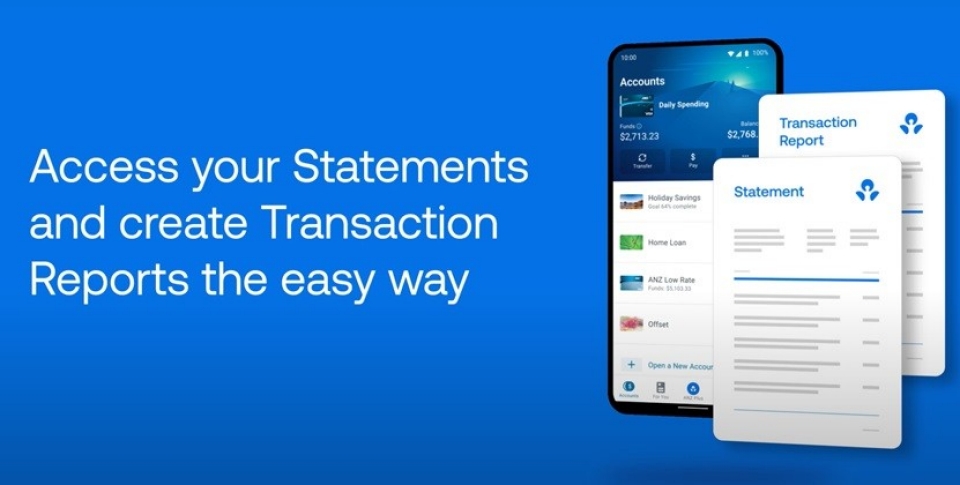
It’s easy to view, save and share your account statements and notices in the ANZ App and Internet Banking. Here’s how.

You can access your statements and notices for both open and closed accounts in the ANZ App.
 Log in to the ANZ App
 Select your account and tap Statements or Notices
 Tap on a statement or notice to open it
 To download or print your statement or notice, tap the share icon at the top right of the screen. Nice one!
Log in to the ANZ App
Tap More, then View statements
Choose the account you want to view the statement for (closed accounts appear at the bottom of the list)
Tap on a statement to open it
 To download or print your statement, tap the share icon at the top right of the screen. Simple!
Please note you can only view notices for closed accounts in ANZ Internet Banking.

You can access your statements and notices for both open and closed accounts in ANZ Internet Banking.
Log in to Internet Banking
Select your account
Click View statements on the left
From the dropdown list, select the account you want to view the statement for
If you’re not looking for statements, select the Notices tab to see your list of available account notices
 Click Download to open your statement in a new internet browser window
 You can download or print your statement or notice by selecting the relevant icon or menu option within your internet browser. Done!
If your statements don't cover the date range that you need, you can generate a Transaction Report for the last 30, 60, 90 or 120 days. This report is available in the ANZ App for most deposit accounts.
Log in to the ANZ App
From the home screen, select the account
Select the 'Statements' tab
Select Get a Transaction Report and follow the prompts.
This video is provided for general guidance and may not reflect the most recent updates to our website or app. Screens, steps, or features shown may vary slightly from the current experience, including the addition of new screens or changes in layout or wording. For the most accurate and up-to-date information, please refer to the live site.
If your statements don't cover the date range that you need, you can generate a Transaction Report for the last 30, 60, 90 or 120 days. This report is available for most deposit and loan accounts.
Log in to Internet Banking
From the homepage, select your account
Select View statements on the left
Select Get a Transaction Report and follow the prompts.


Tip: When generating a Transaction Report in Internet Banking, enable pop-ups on your browser for the report to open in a new window.

Log in to the ANZ App
Tap Support
Tap Message Us and follow the prompts. Too easy!
In some cases, we may ask you to submit the replacement statement request form in Internet Banking.
Log in to Internet Banking
From the homepage, select your account
Select View statements on the left
Select Order a replacement statement
Complete the form by choosing the account, date range/s and preferred delivery method (you can Add more dates here to enter multiple date ranges)
Select Submit, and you’re all sorted!
Once processed, it can take 3-5 business days to receive your statements by mail, or two business days by email.
You can check the details and dispute a transaction in the ANZ App and Internet Banking.
(Only available for open accountsdisclaimer)
Log in to Internet Banking
Select your account from the homepage
Click Download at the top of the Transactions tab
Select the Time period
Select a Software package option from the dropdown
Click Download.
Tip: If you don’t have a spreadsheet or accounting software, a CSV file format can be opened with a plain text editor on your computer (such as Notepad).

Reduce clutter and get your statements as soon they’re available. Make the switch to online statementsdisclaimer.
The ANZ App is provided by Australia and New Zealand Banking Group Limited (ANZ) ABN 11 005 357 522. Super and Insurance (if available) are not provided by ANZ but entities which are not banks. ANZ does not guarantee them. This information is general in nature only and does not take into account your personal objectives, financial situation or needs. ANZ recommends that you read the ANZ App Terms and Conditions available here for iOS (PDF) and here for Android (PDF) and consider if this service is appropriate to you prior to making a decision to acquire or use the ANZ App.